
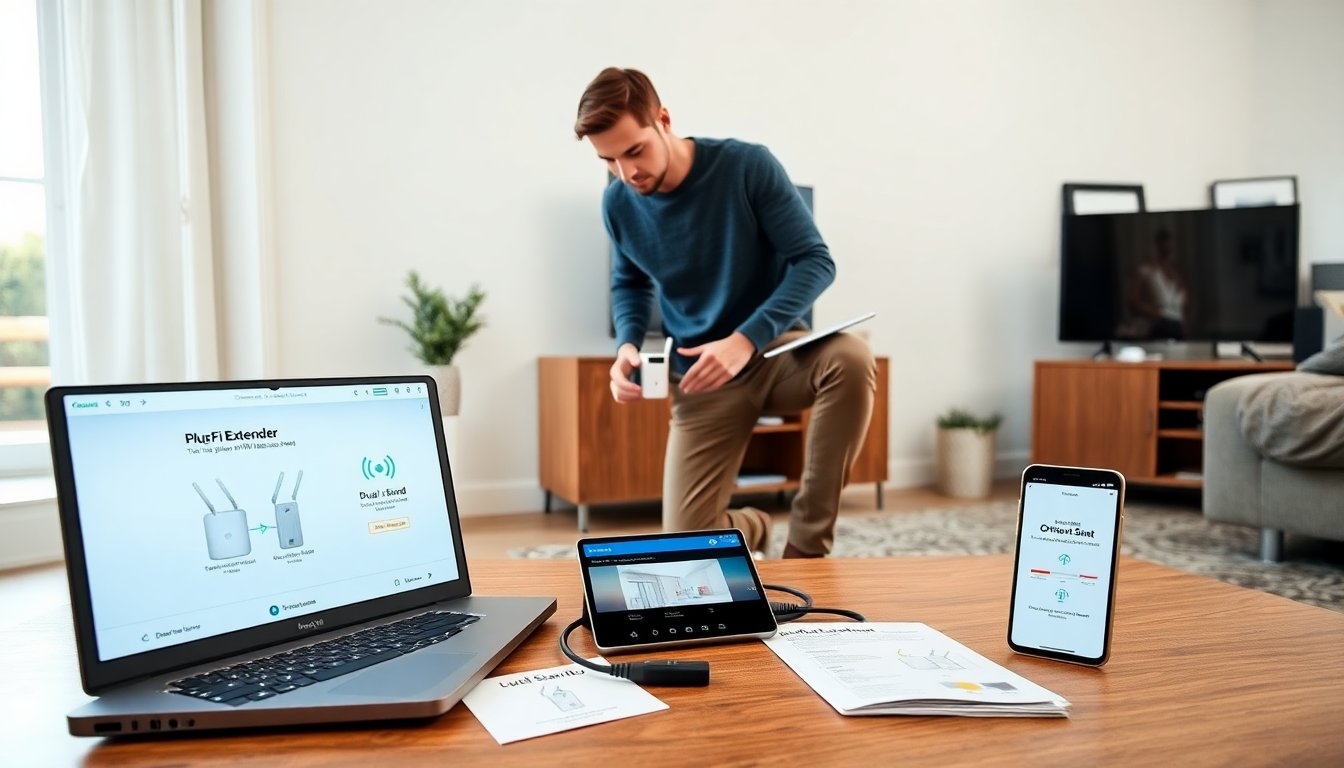
how to setup a wifi extender is a common search for people with weak home Wi‑Fi. This guide gives clear steps and checks. It lists what to prepare and shows quick setup methods. It also covers basic fixes and simple tweaks. The instructions assume a standard router and a plug‑in extender.
Key Takeaways
- How to setup a wifi extender starts with selecting a compatible model that matches your router’s band, speed, and security type for optimal performance.
- Place the extender halfway between your router and the weak signal area, avoiding obstacles like walls and microwaves to maximize coverage.
- Use quick setup methods like WPS or your router’s app to link the extender easily, then verify connection strength with speed tests in target areas.
- Regularly update the extender firmware and adjust router channels to reduce interference and improve Wi-Fi range and speed.
- Consider using Ethernet backhaul or powerline adapters for the fastest, most reliable extender connection when possible.
- If setup issues occur, perform a factory reset on the extender and consult support to ensure your wifi extender setup is successful.
What You Need Before You Start (Models, Placement, Network Info)
Select an extender model that matches the home router band and speed. They choose dual‑band extenders for mixed devices. They pick a model with a web interface or WPS button for easier setup.
Gather network info. The user finds the router SSID and password. The user notes the router admin login if manual setup is needed. The user checks whether the ISP modem uses bridge mode or router mode.
Plan placement. The user places the extender where the router signal is still strong. The user avoids walls, microwaves, and cordless phones. The user positions the extender halfway between the router and the dead zone. The user confirms a power outlet near that spot.
Check device compatibility. The user verifies the extender supports the router security type (WPA2 or WPA3). The user ensures the extender firmware is recent. The user downloads the extender manual or quick guide for model‑specific steps.
Prepare devices. The user charges or powers devices that will connect after setup. They clear temporary Wi‑Fi profiles on a test phone or laptop to avoid confusion. They note whether they want the extender to use the same SSID or a new SSID for the extended network.
Test initial signal. The user walks the home and uses a phone to test router signal strength at target spots. The user marks areas with one or two bars. The user knows these areas need coverage and will aim the extender placement accordingly.
Step‑By‑Step Setup (Quick Router/WPS/Manual Web Setup)
Quick router setup: The user plugs the extender near the router. The user powers the extender and opens the router app or web portal. The user finds an option labeled Extender or Repeater and starts the guided setup. The router sends credentials to the extender and the device links automatically. The user moves the extender to the planned spot after the link shows as active.
WPS setup: The user locates the WPS button on the router and the extender. The user presses the router WPS button for two seconds. The user then presses the extender WPS button within two minutes. The devices exchange keys and form a link. The user watches the extender LED for a solid connection light. The user tests a phone connection to the extended network.
Manual web setup: The user plugs the extender and connects a laptop to the extender network or an Ethernet port. The user opens a browser and types the extender IP or setup URL from the manual. The user logs in with the default admin credentials. The user selects Scan or Site Survey and chooses the home router SSID. The user enters the router Wi‑Fi password and selects whether to copy the router SSID or create a new SSID for the extender. The user sets a clear admin password for the extender and applies the settings.
Verify connections: The user checks a phone and a laptop for internet access on the extended network. The user runs a simple speed test in the target area. The user compares download speeds near the router and in the dead zone. The user confirms acceptable speed and low latency for intended uses.
Move and retest: The user relocates the extender to the midpoint if signals remain weak. The user repeats the speed check. The user tries different wall outlets if signal drops. The user avoids metal cabinets and thick concrete walls when choosing the final spot.
Troubleshooting And Optimization Tips To Maximize Range And Speed
Check LEDs. The user reads the extender LED pattern in the manual. The user uses the LEDs to assess link strength. The user moves the extender until the LED shows medium or high signal.
Update firmware. The user logs into the extender web page and checks for firmware updates. The user installs updates to fix bugs and improve performance.
Change channels. The user logs into the router and views the 2.4 GHz and 5 GHz channel use. The user sets the router to a less crowded channel. The user avoids automatic channel selection if it flips often.
Use band steering carefully. The user enables band steering if the router and extender support it. The user tests device behavior and disables band steering if devices keep switching networks.
Set SSIDs. The user uses the same SSID for both router and extender to allow seamless roaming. The user gives the extender a different SSID if devices refuse to switch cleanly. The user tests both options and picks the smoother choice for their devices.
Limit interference. The user moves cordless phones, baby monitors, and microwave ovens away from the extender and router. The user keeps the extender at least one foot from large metal objects.
Use Ethernet backhaul if possible. The user connects the extender to the router with an Ethernet cable for the best speed. The user chooses a powerline adapter if a direct Ethernet run is not possible.
Reset and retry. The user performs a factory reset on the extender if setup fails. The user follows the manual reset steps and repeats the setup process. The user contacts the extender support if problems persist.
Monitor performance. The user uses a free Wi‑Fi scanner app to check signal and channel overlap. The user adjusts placement and router settings based on the app results. The user repeats tests after each change to measure gains.