
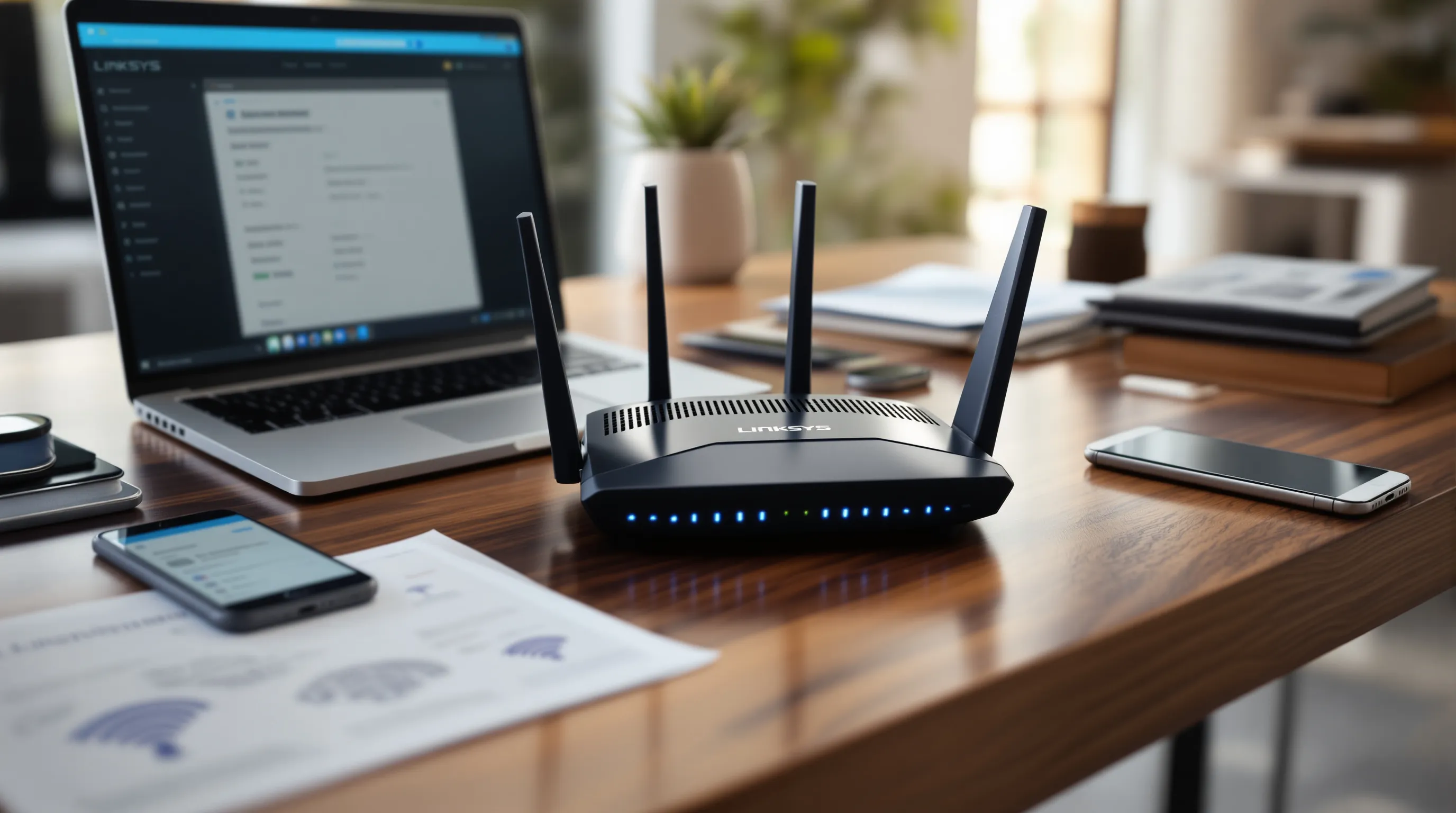
Picture this: It’s 2 a.m., your Wi-Fi drops mid-movie, and you’re crawling under your desk, phone flashlight in hand, muttering about “the Linksys router IP.” If you’ve ever fumbled with cables or squinted at blinking lights, you know the frustration. But here’s the part nobody tells you—understanding your Linksys router IP isn’t just for techies. It’s the secret to controlling your home network, boosting speed, and keeping freeloaders off your Wi-Fi.
What Is the Linksys Router IP?
The Linksys router IP is the address you type into your browser to access your router’s settings. For most Linksys routers, it’s 192.168.1.1. This number isn’t random. It’s a private address, meaning only devices on your network can use it. Think of it as your router’s “front door”—the place you go to change passwords, set up parental controls, or reboot when things get weird.
Why Should You Care?
If you’ve ever wondered why your internet crawls during Zoom calls or why your neighbor’s kid is always on your Wi-Fi, the answer often hides behind your Linksys router IP. Accessing your router’s settings lets you:
- Change your Wi-Fi password (and kick off unwanted guests)
- Set up guest networks for visitors
- Prioritize devices—so your gaming console gets more bandwidth than your smart fridge
- Update firmware for better security and speed
Here’s why this matters: Most people never touch their router settings. They miss out on simple fixes that could make their internet faster and safer.
How to Find Your Linksys Router IP
Let’s break it down. Most Linksys routers use 192.168.1.1 as the default IP. But sometimes, things change—maybe you or your internet provider set a different address. Here’s how to find it:
- Check the sticker: Flip your router over. The default Linksys router IP is usually printed on a label.
- Use your computer: On Windows, open Command Prompt and type ipconfig. Look for “Default Gateway”—that’s your router’s IP. On Mac, go to System Preferences > Network, select your connection, and click “Advanced.” The router IP shows up there.
- Try the usual suspects: If all else fails, type 192.168.1.1 or 192.168.0.1 into your browser. One of them usually works.
If you’re still stuck, don’t panic. Linksys support has a handy guide, or you can reset your router to factory settings (just remember, you’ll lose custom settings).
Accessing Your Linksys Router Settings
Once you have the Linksys router IP, type it into your browser’s address bar. You’ll see a login screen. The default username is often blank, and the password is usually “admin.” If you changed these and forgot, you might need to reset the router.
What You Can Do Inside
Here’s where things get interesting. Inside your Linksys router’s dashboard, you can:
- Change your Wi-Fi name (SSID) and password
- Set up parental controls to block certain sites
- Update your router’s firmware for new features and security patches
- See which devices are connected—spotting freeloaders is oddly satisfying
- Set up port forwarding for gaming or remote work
Don’t worry if this sounds intimidating. Most settings have helpful explanations. And if you mess up, you can always reset to default.
Common Mistakes and How to Avoid Them
Here’s a confession: I once locked myself out of my own Wi-Fi by changing the password and forgetting it. If you’ve ever done something similar, you’re not alone. Here are a few mistakes to watch for:
- Forgetting your login details: Write them down or use a password manager.
- Not updating firmware: Outdated software leaves you open to hackers. Check for updates every few months.
- Leaving the default password: “Admin” is the first thing hackers try. Change it to something unique.
- Messing with settings you don’t understand: If you’re unsure, look up guides or ask for help before saving changes.
Here’s the payoff: A few minutes spent inside your Linksys router IP dashboard can save you hours of frustration later.
Who Should Use the Linksys Router IP?
If you’re the “tech person” in your house, this is for you. If you want faster Wi-Fi, better security, or just the satisfaction of knowing how things work, you’ll benefit. But if you’re terrified of breaking things, start slow. Change one setting at a time. Take screenshots before you tweak anything. And remember, you can always reset if things go sideways.
Advanced Tips for Power Users
Ready to go deeper? Here are a few tricks:
- Set up Quality of Service (QoS): Prioritize video calls or gaming over background downloads.
- Create a guest network: Keep visitors off your main network for better security.
- Monitor bandwidth: See which devices use the most data—helpful if you have a data cap.
- Change your Linksys router IP: If you want extra security, you can set a custom IP address. Just make sure you remember it!
Here’s the part nobody tells you: Most problems have simple fixes. You don’t need to be a network engineer to take control.
Next Steps: Take Charge of Your Network
If you’ve ever felt powerless when your internet slows down or your Wi-Fi acts up, learning your Linksys router IP is the first step to taking back control. Start by logging in, changing your password, and exploring the settings. You’ll be surprised how much you can do—and how much smoother your online life gets.
Remember, every expert started as a beginner. The only mistake is never trying. So grab your laptop, type in that Linksys router IP, and see what you can improve today.