

Ever wondered what if your important office-related data or financial records get deleted all of a sudden? Losing crucial Excel files can be distressing, but there’s no need to worry! Whether the file was accidentally deleted, lost due to a system crash, or overwritten, the good news is that recovery is often possible. Windows offer several built-in recovery options, and there are some additional methods that you can try to recover your deleted Excel files with ease.
In this article, we’ll cover different methods to recover deleted Excel files on Windows, starting from the simplest solutions to more advanced techniques. Let’s discuss these free data recovery options in detail.
Common Reasons for Excel File Loss
Before diving into different methods to recover deleted Excel files on Windows, it’s important to understand the exact reason for the loss. Some prominent reasons include:
Accidental Deletion
One of the most important reasons for sudden Excel file loss is human error. You may accidentally delete an Excel file or press Shift + Delete, which permanently removes it without sending it to the Recycle Bin.
System Crash or Power Failure
Unexpected system shutdowns, crashes, or power cuts while working on an Excel file can result in unsaved or corrupted files.
Virus or Malware Attack
Malicious software like viruses or malware can delete, hide, or corrupt Excel files. Some ransomware even locks files, making them inaccessible without payment.
File Corruption
Excel files can become corrupted due to software glitches, improper saving, or compatibility issues, making them unreadable or inaccessible.
Hard Drive or Storage Failure
Physical damage or logical errors in storage devices (HDD, SSD, USB drives) can lead to loss of Excel files.
Identifying the exact cause can help you choose the most appropriate recovery method.
How to Recover Deleted Excel Files on Windows? [Free Data Recovery Methods]
Now that you are familiar with the reasons for your Excel file loss, it’s time to apply adequate free data recovery methods to get it back. Here are some best options that can help you to get your deleted Excel files back:
Method 01: Check the Recycle Bin
Let’s start with the simplest method first. Every deleted file on your Windows PC goes to the Recycle Bin and remains there until permanently erased. Before you proceed with advanced methods, it’s important to check the Recycle Bin folder. All you have to do is:
- Firstly, double-click the Recycle Bin icon on the desktop.
- Browse through deleted files and select the Excel file that you want to restore.
- Right-click on that file and select Restore.
This will restore the selected Excel file to its original location.
Method 02: Restore Excel Files Using Previous Versions
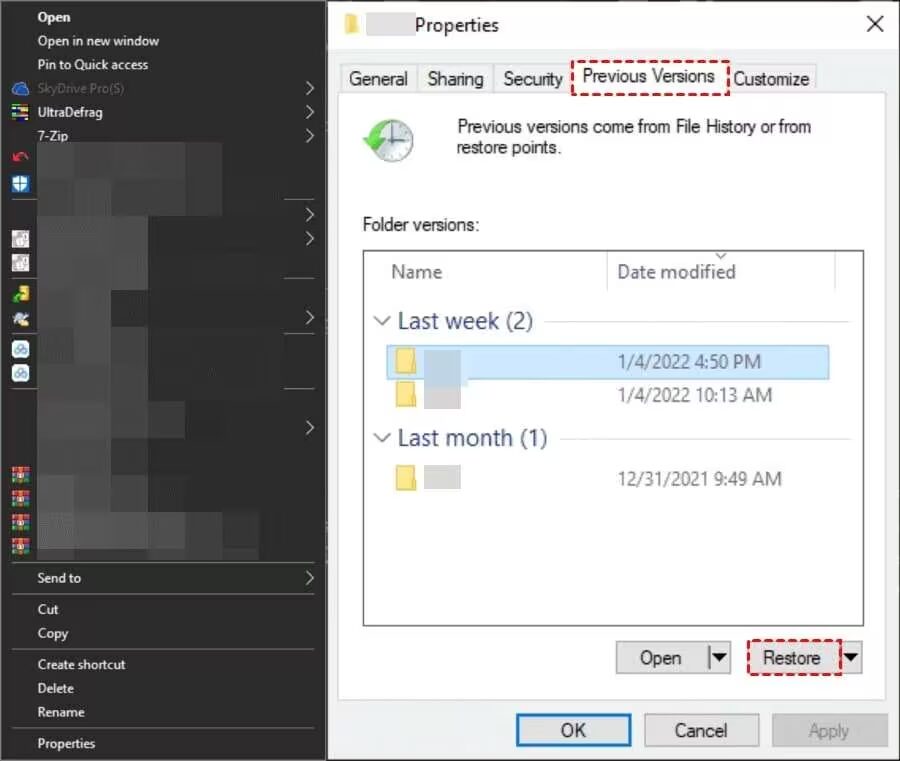
If you’ve deleted the Excel file using the Shift + Delete keys shortcut or emptied the Recycle Bin folder, your file might have been permanently erased. In such a case, Windows offers an in-built Previous Versions feature, which, when synced on your device, automatically creates backup of your files.
You can use this option to restore deleted files in case of unexpected data loss instances. For this:
- Locate and right-click on the Excel file that you need to restore.
- Select “Properties” and then go to the “Previous Versions” tab.
- Choose the version you want to restore and click “Restore” to replace the current file.
- You can also select the “Restore to” option to save the previous version to a specific location.
Method 03: Recover from File History Backup
If you’ve enabled the File History backup utility on your Windows device, you can recover deleted Excel files easily. Follow the below steps to get your deleted Excel files using File History backup:
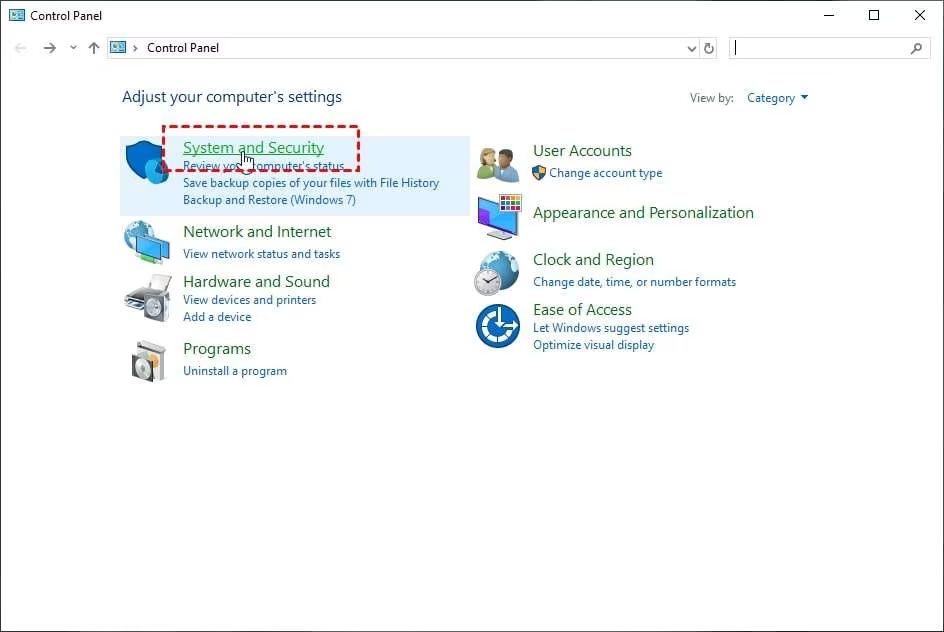
- Type CP in the search box of your taskbar and then launch the Control Panel.
- Now, go to System and Security, then select File History.
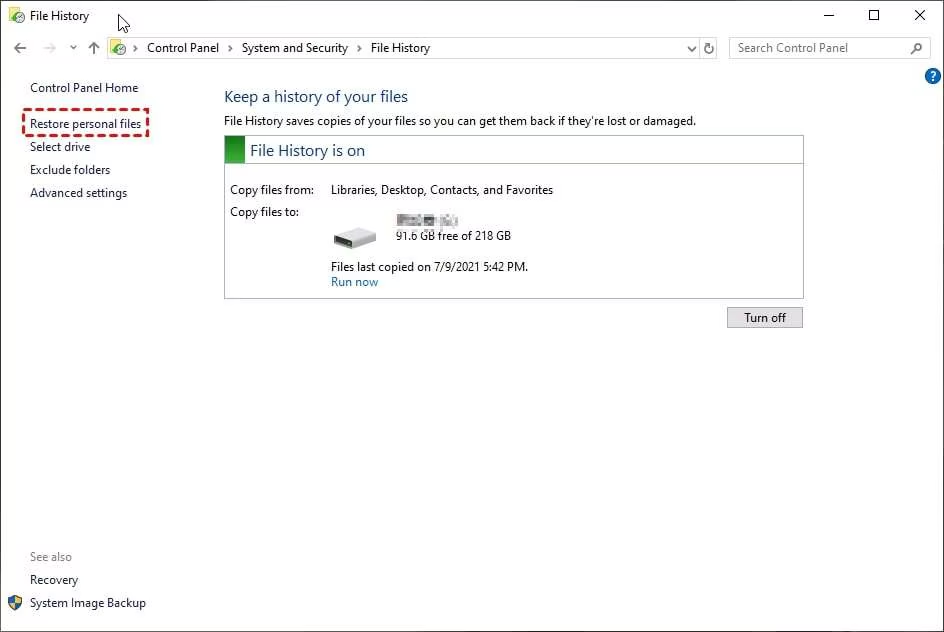
- Tap Restore personal files from the left pane, and go to the folder where your deleted Excel file was stored.

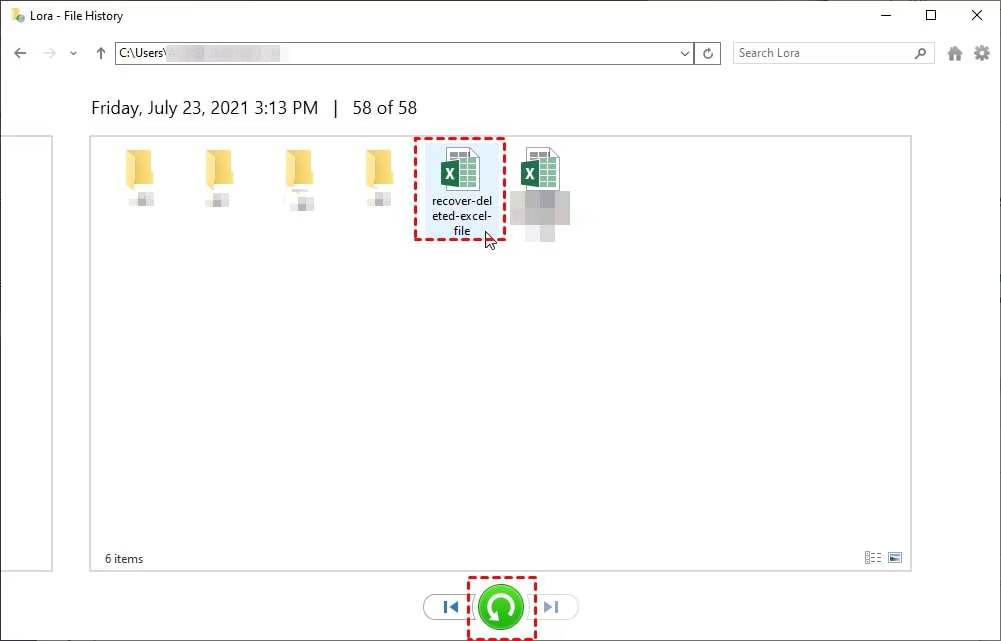
- Use the left/right arrows to browse previous backups.
- Select the required Excel file and click the green Restore button to recover it.
Method 04: Use the AutoRecover Feature to Restore Excel Files
Microsoft Excel provides an in-built AutoRecover feature, which you can use to restore unsaved or recently lost files after a crash or accidental closure. For this:
- Launch Microsoft Excel, go to File > Info.
- Select Manage Workbook, then click on Recover Unsaved Workbooks.
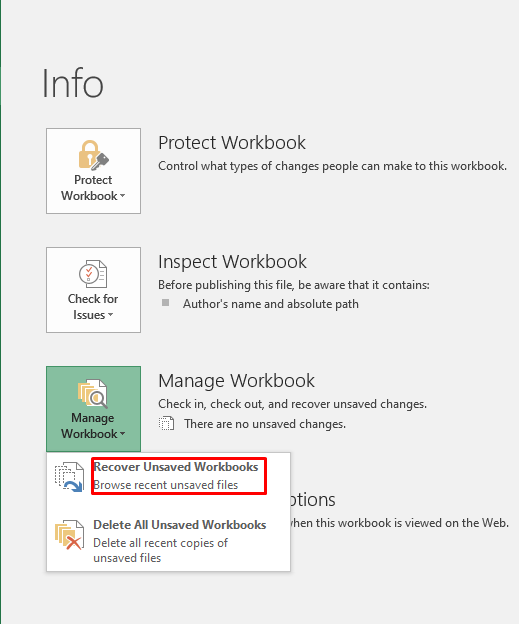
- Now, browse through the folder containing unsaved Excel files.
- Select the file you want and click Open.
- Click Save As to store selected Excel files safely.
Quick Steps to Recover Deleted Excel Files Using Free Data Recovery Software
You might assume you’re in trouble if none of the above backup options is available to recover deleted Excel files, but that isn’t necessarily true. In such a case, you can use third-party free data recovery software tools, such as Stellar Data Recovery Free, to get your Excel files back. This all-in-one data recovery software supports recovery of Excel files deleted due to accidental deletion, system formatting, virus or malware attacks, etc. Not only Excel files, you can use this software to restore deleted photos, videos, documents, emails, and many other types of files of various file formats.
The Stellar Data Recovery Free software supports the recovery of deleted files up to 1 GB for free. Moreover, to restore files of larger size, you can upgrade to premium versions. This free data recovery software also lets you preview the recoverable files before saving them on your device. The software allows data recovery in three simple steps, i.e., Select, Scan, and Recover.
Let’s check the recovery steps to restore your Excel files using the Stellar Data Recovery Free software in detail:
Step 1: Start the process by downloading and installing the Stellar Data Recovery Free software from its official website on your Windows PC.
Step 2: Launch the software and select Office Documents (as you need to restore lost Excel files), and click Next to continue.
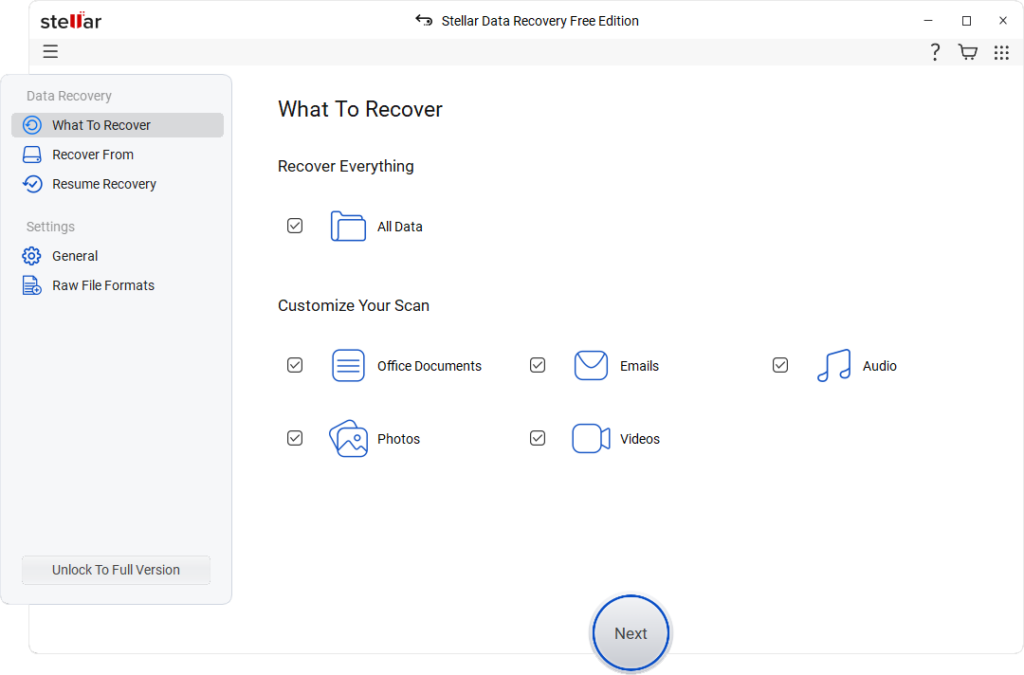
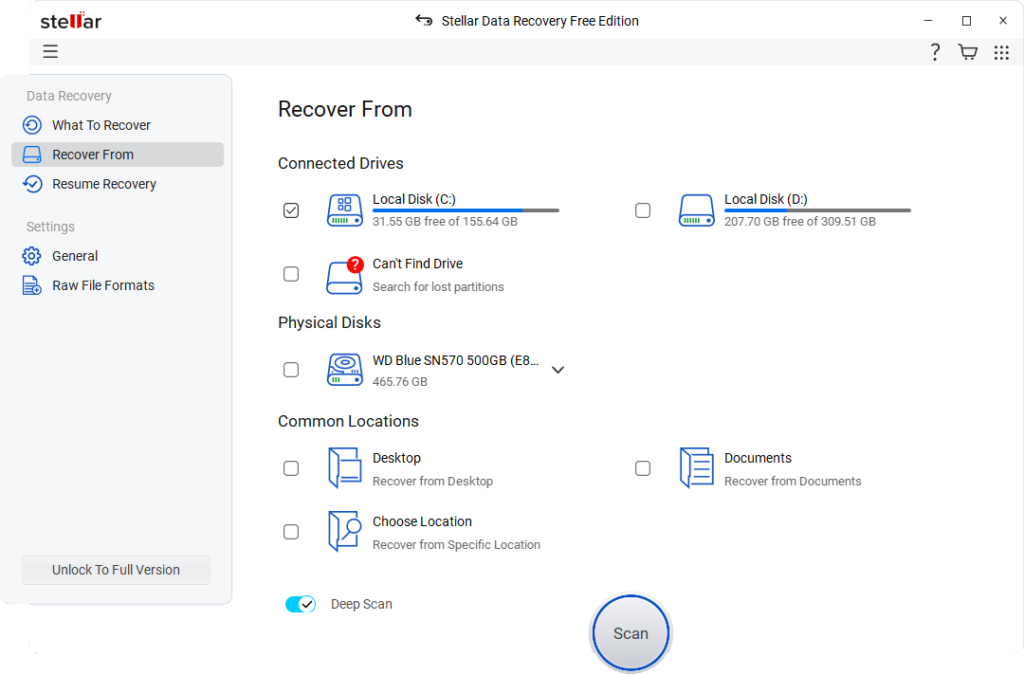
Step 3: Select the drive or folder where the Excel file was lost and click Scan to initiate the scanning process. Use Deep Scan if the file is not found in the initial scan.
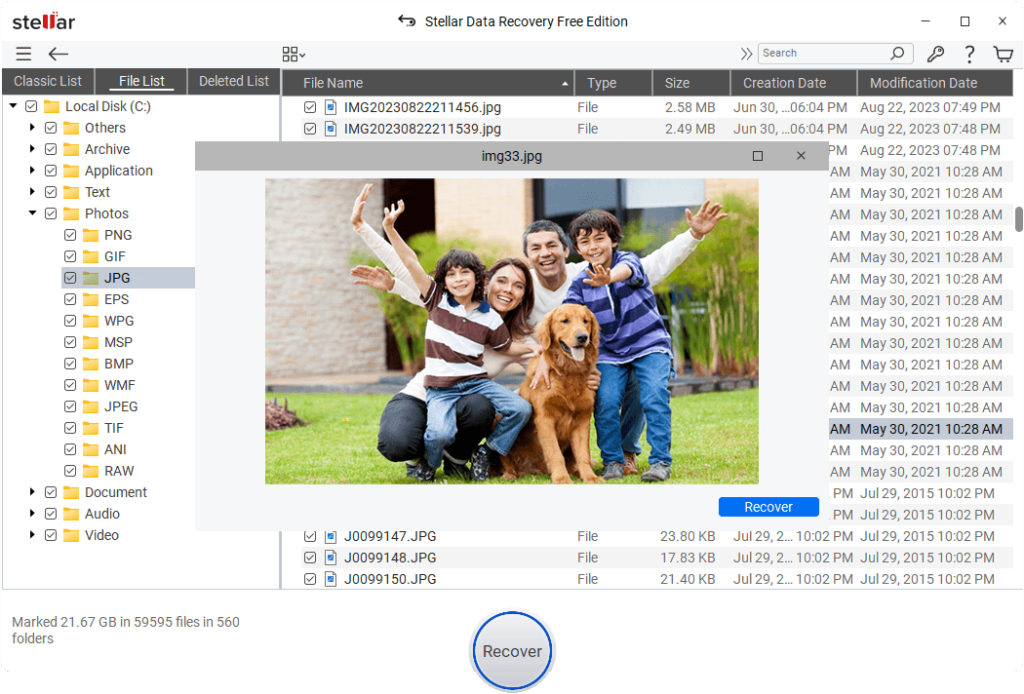
Step 4: After scanning, preview the recoverable results and locate the Excel file (.xls / .xlsx) that you want. Click Recover to save the recovered file to a safe location on your PC.
Additional Tips: Best Practices to Improve Recovery Success
Recovering a deleted Excel file on Windows is quite easy using the aforementioned methods. Here we have provided some additional tips that you can consider to enhance your recovery success:
- Act immediately after deleting a file, because delay increases the chances of data being overwritten and permanently lost.
- Regularly create backups of important files to ensure you always have a safe copy available in case of accidental loss.
- Turn on Excel AutoSave and AutoRecover features to automatically save progress and reduce the risk of losing unsaved work during unexpected issues.
Wrapping Up
Recovering deleted Excel files on Windows may seem like a challenging task, but it is quite easy, especially if you act quickly and use the right methods. Start with simple solutions like checking the Recycle Bin and built-in features such as File History, Previous Versions, and Excel AutoRecover. For a more serious data loss scenario, you can use advanced methods, such as using professional free data recovery software like Stellar Data Recovery Free.
The key to successful recovery lies in quick action and minimising further disk usage. At the same time, adopting preventive measures like regular backups and cloud storage can save you from future data loss situations.